

Getting started
Your first town hall, end to end
Seven steps, roughly ten minutes. You bring the video call you already use; Prytaneum wraps the meeting around it. Nothing to install, for you or for the people who attend.
- 1
Create an account
You need an email address and a password, or a Google account. Your display name is what other organizers see; in a meeting that allows anonymous questions you appear under a participant label instead.
- 2
Create an organization
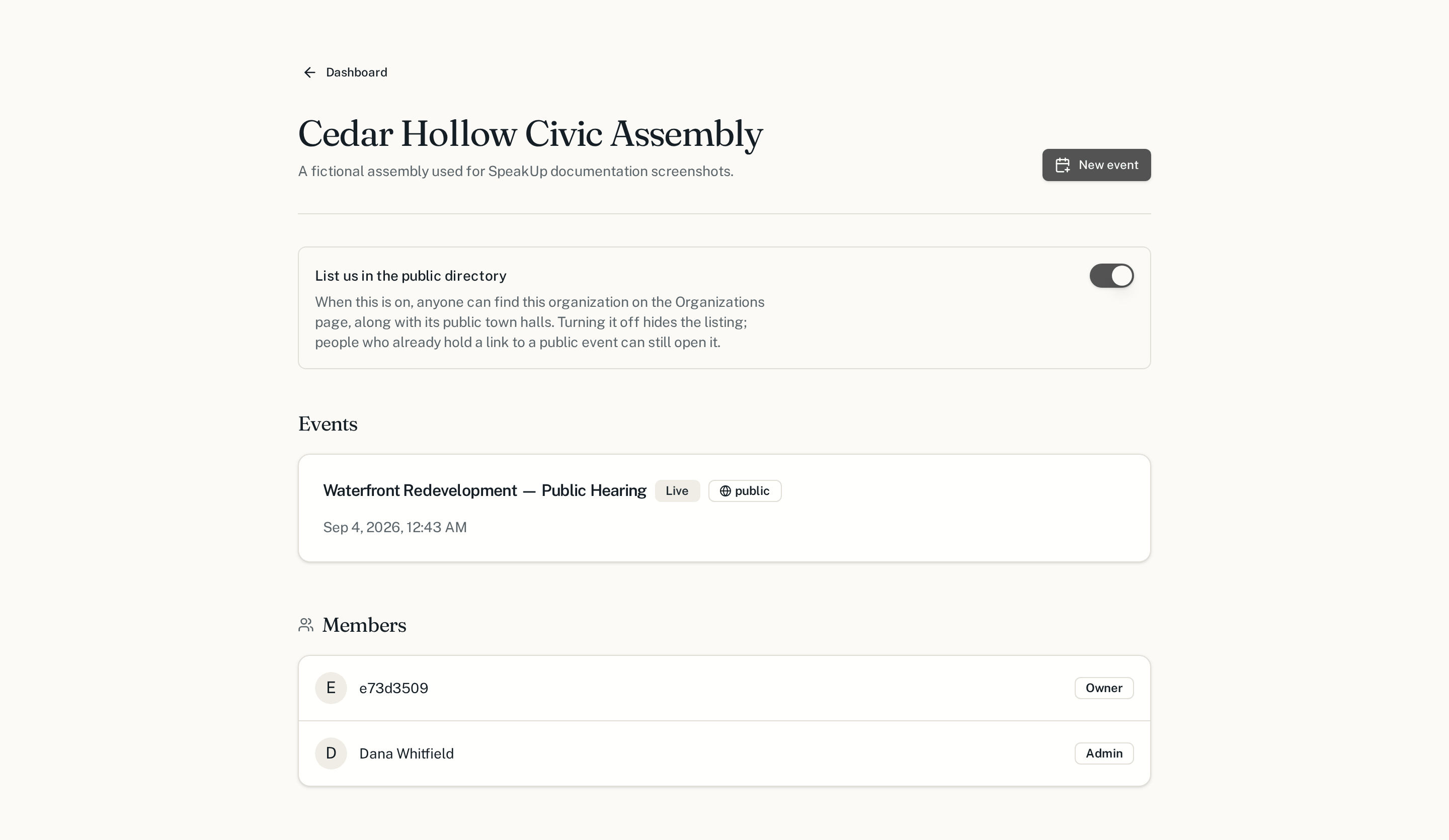
An organization is the body that holds the meetings — a council, an assembly, a department. Everything else lives inside it, and its members are the people allowed to run events.
- 3
Schedule a town hall
Give it a title, a description of what will be decided, and a start and end time. Leave it as a draft until you are ready; nobody can find it before you publish.
- 4
Attach your video call
Connect your YouTube channel once; each meeting gets its own live stream automatically. The video then sits at the centre of the town hall page, with questions and chat in a column beside it and the moderator's tools opening on top of it.
- 5
Decide who can see it
A public town hall is open to anyone with the link. A private one is limited to the roster you invite. You can change this before the meeting starts.
- 6
Invite moderators and speakers
Moderators build the queue, speakers are listed on the page so the room knows who is answering. Everyone else joins as a participant.
- 7
Go live
Set the status to live when the meeting opens. Questions can then be submitted, and the control room starts filling up.
Creating your account
Creating an account takes a display name, an email address and a password of at least eight characters — or a Google account, if your body already uses one. The display name is shown to organizers and to anyone you invite; it is never attached to a question posted anonymously in a meeting that allows it. You can change either later from your account settings.
Your organization
Next
Pick the guide that matches your role in the meeting.